
 meld-cp
0403b6b7e6
meld-cp
0403b6b7e6
|
2 years ago | |
|---|---|---|
| .github | 3 years ago | |
| .vscode | 3 years ago | |
| docs | 4 years ago | |
| src | 2 years ago | |
| tools | 2 years ago | |
| .eslintignore | 3 years ago | |
| .eslintrc | 3 years ago | |
| .gitignore | 2 years ago | |
| CHANGELOG.md | 2 years ago | |
| LICENSE | 3 years ago | |
| README.md | 2 years ago | |
| esbuild-tool-decrypt.config.mjs | 2 years ago | |
| esbuild-tool-mdenc.config.mjs | 2 years ago | |
| esbuild.config.mjs | 2 years ago | |
| manifest-beta.json | 2 years ago | |
| manifest.json | 2 years ago | |
| package-lock.json | 2 years ago | |
| package.json | 2 years ago | |
| tsconfig.json | 3 years ago | |
| version-bump.mjs | 3 years ago | |
| versions.json | 2 years ago | |
README.md
Obsidian Encrypt Plugin
Create encrypted notes within your Obsidian.md vault.
Encrypted notes are never decrypted to disk giving you peace-of-mind that the decrypted contents haven't been sync'd or backed up to external systems.
⚠️ WARNING - Use at your own risk ⚠️
- Your passwords are never stored anywhere, if you forget your passwords you can't decrypt your notes.
- No known audits have been undertaken for the soundness of encryption methods being used. Unwanted decryption by a 3rd party may be possible if they have access to your files.
- Bugs could be introduced to the software at anytime, you are responsible for having backups of your notes.
⚜️ Installation
You can install the plugin via the Community Plugins tab within Obsidian by searching for "Meld Encrypt"
⚜️ Latest Changes
Please visit the Change Log for a listing of changes.
Report any bugs or feature requests here.
⚜️ Usage
Whole encrypted notes (.mdenc files)
To create a new encrypted note
- Select 'Create encrypted note' from the command palette (or click the ribbon icon).
- Enter and confirm a password and optional hint to use.
- Edit your encrypted note (it's contents will be encrypted and saved to disk).
To edit/view an encrypted note
- Open the note as usual from the navigation tree.
- Enter the password for the note.
To change an encrypted note's password and hint
- Open the note as usual from the navigation tree.
- Enter the password for the note.
- Click the 'Change Password' icon from the tab title bar or tab context menu.
- Enter the new password and hint.
To encrypt/decrypt an existing note
- Right-click the file and choose 'Encrypt note' or 'Decrypt note'.
OR
- Select the ribbon icon named 'Convert to or from an Encrypted note' to toggle the active file between encrypted and not.
OR
- Select 'Convert to or from an Encrypted note' from the command palette (or even better, bind a hot key)
In-place Encryption
To encrypt selected text
- Select some text to encrypt
Note: A partial selection will be expanded to include the whole line if the 'Expand selection to whole line' setting is enabled.
-
Run the Encrypt/Decrypt command from the palette (or bind a keyboard shortcut to it).
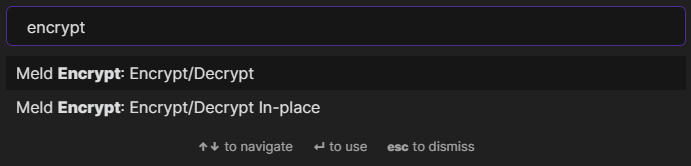
-
Enter and confirm a password and optional hint.
-
Your selected text should now be encrypted.
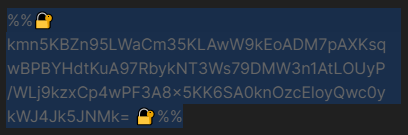
How to reveal your encrypted text
-
Place your cursor anywhere on encrypted text.

-
Run the Encrypt/Decrypt command from the palette.
Note: If you choose 'Encrypt/Decrypt In-place' your text will be decrypted directly into the editor without showing the dialog in step 4 below (any syncing or backup software could then pick this up).
- Enter the correct password.
Note: Your previously used password is filled in by default (You can change this in the plugin settings).
- Your decrypted text is revealed in a dialog window.
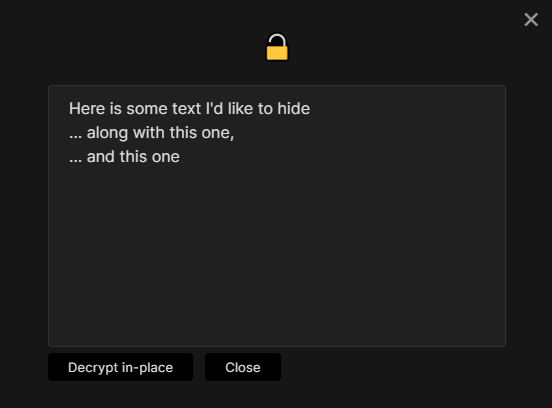
Note: Click 'Decrypt In-place' to replace the encrypted text in the editor.
⚜️ Settings
| Confirm password | Confirm password when encrypting (recommended) |
| Remember password | Remember the last used password for this session. |
| Remember Password Timeout | The number of minutes to remember the last used password. |
| Remember Password Using | Remember session passwords by using Vault, Folder or File matching |
Whole note encryption
| Default view for new tabs | The default view that a new encrypted note tab gets opened in |
In-place encryption
| Expand selection to whole line | Partial selections will get expanded to the whole line |
| By default, show encrypted marker when reading | When encrypting inline text, should the default be to have a visible marker in Reading view |